
Payroll provisioning using Microsoft SCIM
Functionality that allows automatic synchronization of payroll data (employees and groups) from Microsoft Entra ID to Whalemate, using the standard SCIM protocol.
What is it for?
Automates the creation, update, and removal of collaborators in Whalemate based on data that already exists in Microsoft Entra ID.
Eliminates manual or file-based payroll loading.
Keeps Microsoft Entra ID groups synced with teams/groups in Whalemate.
Centralizes the source of truth for collaborator data in Microsoft Entra ID, reducing inconsistencies.
How is it used or implemented?
Prerequisite: having Microsoft Entra ID P1 (included in Microsoft 365 E3 for enterprise customers, or in Microsoft 365 Business Premium for SMBs).
Create the application in Microsoft Azure
Go to Enterprise applications
Click Manage → All applications → + New application
Click Create your own application
Fill in:
Application name: Whalemate SCIM Provisioning
Option: Integrate any other application you don't find in the gallery
Press Create
This creates the application in Microsoft Azure that will allow the integration of the payroll with the Whalemate platform.
Configure provisioning
Go to Manage → Provisioning → New configuration
Fill in the fields:
Authentication method: Bearer authentication
Tenant URL: https://back.whalemate.com/scim/v2
Secret token
How to generate the Secret token:
Go to https://app.whalemate.com → Settings → Integrations → Azure AD | SCIM → Import → Generate Bearer Token
The Bearer Token is shown only once. You must copy it and store it in a safe place before closing the dialog, since it cannot be viewed again (the integration can only be managed from there onward).
Validation: before creating the configuration, you must press Test connection. If the connection is successful, the Create button is enabled; if it fails, you should check the Tenant URL and the Secret token.
Once created, the configuration's Status shows as Disabled until provisioning is started (see step 5).
Assign attributes
Go to Manage → Attribute mapping (preview)
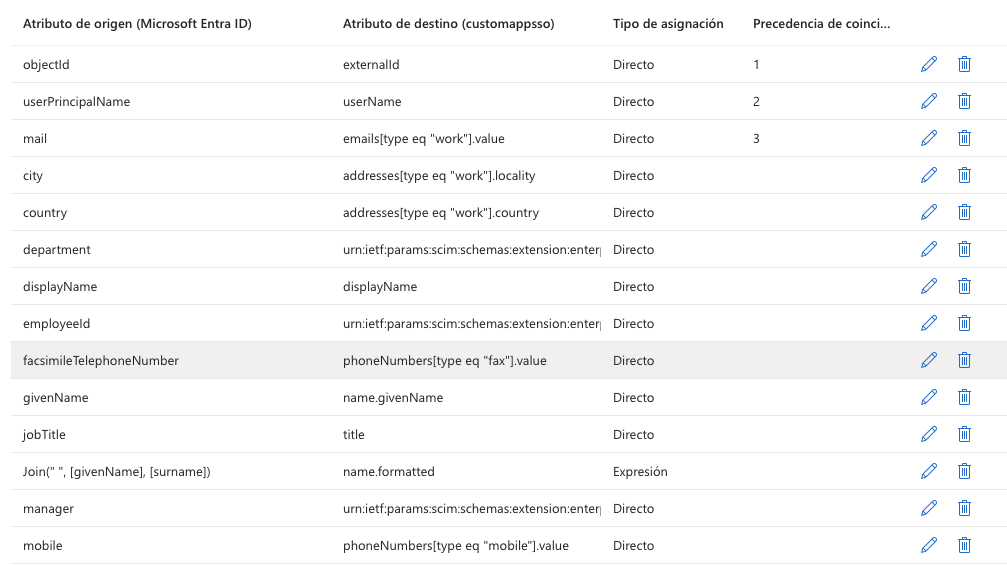
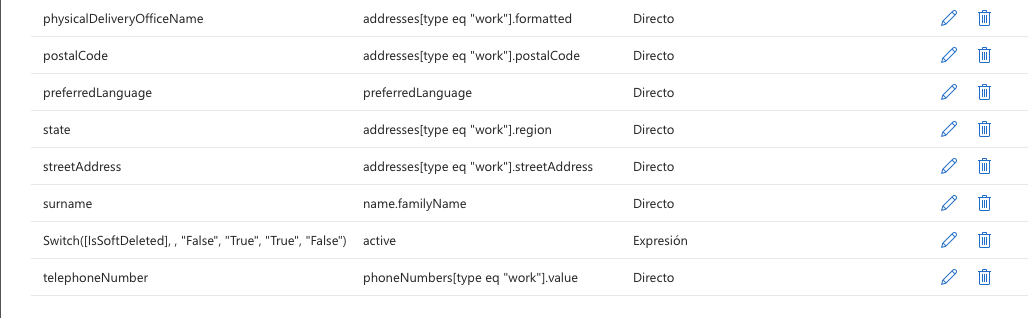
a) Provision Microsoft Entra ID Users — map the attributes between SCIM and Microsoft Entra ID according to the following correspondence:
—
(*) If the mail field is empty, it is automatically filled with the User Principal Name (UPN).
By default, the only field that must be modified manually is externalId, with the value employeeId.
Matching precedence to set:
externalId ↔ objectId
userName ↔ userPrincipalName
emails[type eq "work"].value ↔ mail
b) Provision Microsoft Entra ID Groups — map with the following precedence:
externalId ↔ objectId
displayName ↔ displayName
Assign users and groups
Go to Manage → Users and groups → + Add user or group
Click None selected, choose the Groups tab and select the group(s) that will be automatically synced for provisioning
Press Select and then Assign
When assigning a group to the application, only users who are directly in that group will have access. The assignment does not cascade to nested groups.
Start provisioning
Go to Manage → Provisioning
Click Start provisioning
Return to Manage → Provisioning and confirm that the Provisioning status remains Enabled
❓ Frequently asked questions
What happens if a collaborator doesn't have email configured in Microsoft Entra ID?
The system automatically fills the field with the user's User Principal Name (UPN).Can I see the Bearer Token again if I lose it?
No. The token is shown only once when generated. If lost, a new one must be generated from Settings → Integrations → Azure AD | SCIM.What version of Microsoft 365 do I need to use this functionality?
You need Microsoft Entra ID P1, included in Microsoft 365 E3 (enterprises) or Microsoft 365 Business Premium (SMBs).If I sync a group with nested subgroups, are the subgroups also synced?
No. The assignment of a group does not cascade to nested groups; only users who belong directly to the selected group are synced.Is it mandatory to modify all the mapped attributes?
No. By default, the only field that requires manual modification is externalId, which must be set with the value employeeId.
Do you have feedback or want to request improvements? Tell us at roadmap.whalemate.com/roadmap