
Aprovisionamiento de nómina utilizando SCIM de Microsoft
Funcionalidad que permite sincronizar automáticamente los datos de la nómina (colaboradores y grupos) desde Microsoft Entra ID hacia Whalemate, utilizando el protocolo estándar SCIM.
¿Para qué sirve?
Automatiza el alta, la actualización y la baja de colaboradores en Whalemate a partir de los datos que ya existen en Microsoft Entra ID.
Elimina la carga manual o por archivo de la nómina.
Mantiene sincronizados los grupos de Microsoft Entra ID con los equipos/grupos en Whalemate.
Centraliza la fuente de verdad de los datos de colaboradores en Microsoft Entra ID, reduciendo inconsistencias.
¿Cómo se usa o implementa?
Requisito previo: contar con Microsoft Entra ID P1 (incluido en Microsoft 365 E3 para clientes empresariales, o en Microsoft 365 Empresa Premium para pymes).
Crear la aplicación en Microsoft Azure
Ingresar a https://portal.azure.com/#home
Ir a Aplicaciones empresariales
Hacer clic en Administrar → Todas las aplicaciones → + Nueva aplicación
Hacer clic en Cree su propia aplicación
Completar:
Nombre de la aplicación: Whalemate Aprovisionamiento SCIM
Opción: Integrar cualquier otra aplicación que no se encuentre en la galería
Presionar Crear
Esto crea la aplicación en Microsoft Azure que permitirá la integración de la nómina con la plataforma de Whalemate.
Configurar el aprovisionamiento
Ir a Administrar → Aprovisionamiento → Nueva configuración
Completar los campos:
Método de autenticación: Autenticación de portador
URL de inquilino: https://back.whalemate.com/scim/v2
Token secreto
Cómo generar el Token secreto:
Ingresar a https://app.whalemate.com → Configuración → Integraciones → Azure AD | SCIM → Importar → Generar Token Bearer
El Token Bearer se muestra una sola vez. Es obligatorio copiarlo y guardarlo en un lugar seguro antes de cerrar el diálogo, ya que no podrá visualizarse nuevamente (solo se podrá gestionar la integración desde ahí en adelante).
Validación: antes de crear la configuración, se debe presionar Probar conexión. Si la conexión es satisfactoria, se habilita el botón Crear; si falla, se debe revisar la URL de inquilino y el Token secreto.
Una vez creada, el Estado de la configuración aparece como Deshabilitado hasta que se inicie el aprovisionamiento (ver paso 5).
Asignar atributos
Ir a Administrar → Asignación de atributos (versión preliminar)
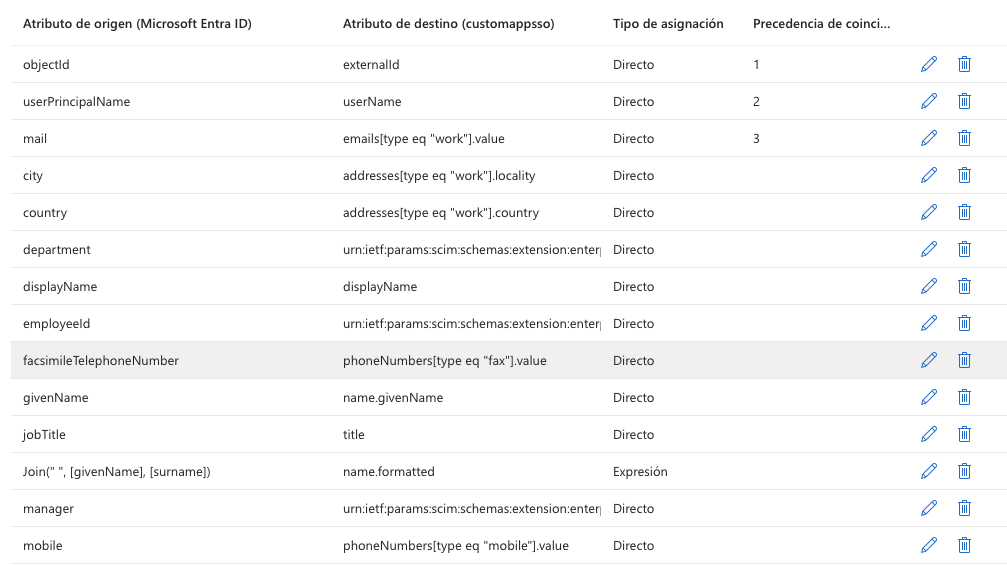
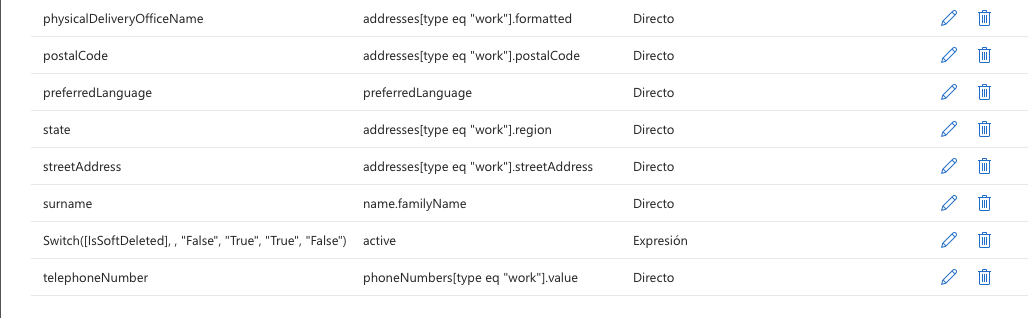
a) Provisión Microsoft Entra ID Users — mapear los atributos entre SCIM y Microsoft Entra ID según la siguiente correspondencia:
—
(*) Si el campo mail está vacío, se completa automáticamente con el User Principal Name (UPN).
Por defecto, el único campo que debe modificarse manualmente es externalId, con el valor employeeId.
Precedencia de coincidencia a establecer:
externalId ↔ objectId
userName ↔ userPrincipalName
emails[type eq "work"].value ↔ mail
b) Provisión Microsoft Entra ID Groups — mapear con la siguiente precedencia:
externalId ↔ objectId
displayName ↔ displayName
Asignar usuarios y grupos
Ir a Administrar → Usuarios y grupos → + Agregar usuario o grupo
Hacer clic en Ninguna seleccionada, elegir la pestaña Grupos y seleccionar el/los grupo(s) que se sincronizarán automáticamente para el aprovisionamiento
Presionar Seleccionar y luego Asignar
Al asignar un grupo a la aplicación, solo tendrán acceso los usuarios que estén directamente en ese grupo. La asignación no se aplica en cascada a grupos anidados.
Iniciar el aprovisionamiento
Ir a Administrar → Aprovisionamiento
Hacer clic en Iniciar aprovisionamiento
Volver a Administrar → Aprovisionamiento y confirmar que el Estado de aprovisionamiento quede en Activado
❓ Preguntas frecuentes
¿Qué pasa si un colaborador no tiene el correo configurado en Microsoft Entra ID?
El sistema completa automáticamente el campo con el User Principal Name (UPN) del usuario.¿Puedo ver el Token Bearer nuevamente si lo pierdo?
No. El token se muestra una sola vez al generarlo. Si se pierde, es necesario generar uno nuevo desde Configuración → Integraciones → Azure AD | SCIM.¿Qué versión de Microsoft 365 necesito para usar esta funcionalidad?
Se necesita Microsoft Entra ID P1, incluido en Microsoft 365 E3 (empresas) o Microsoft 365 Empresa Premium (pymes).Si sincronizo un grupo con subgrupos anidados, ¿se sincronizan también los subgrupos?
No. La asignación de un grupo no se aplica en cascada a grupos anidados; solo se sincronizan los usuarios que pertenecen directamente al grupo seleccionado.¿Es obligatorio modificar todos los atributos mapeados?
No. Por defecto, el único campo que requiere modificación manual es externalId, que debe configurarse con el valor employeeId.
¿Tienes feedback o quieres solicitar mejoras? Cuéntanos en roadmap.whalemate.com/roadmap