
Grupos Inteligentes
Los Grupos Inteligentes te permiten crear segmentos de colaboradores usando lenguaje natural. En lugar de armar filtros manuales, describís quiénes querés incluir y la IA genera el grupo automáticamente.
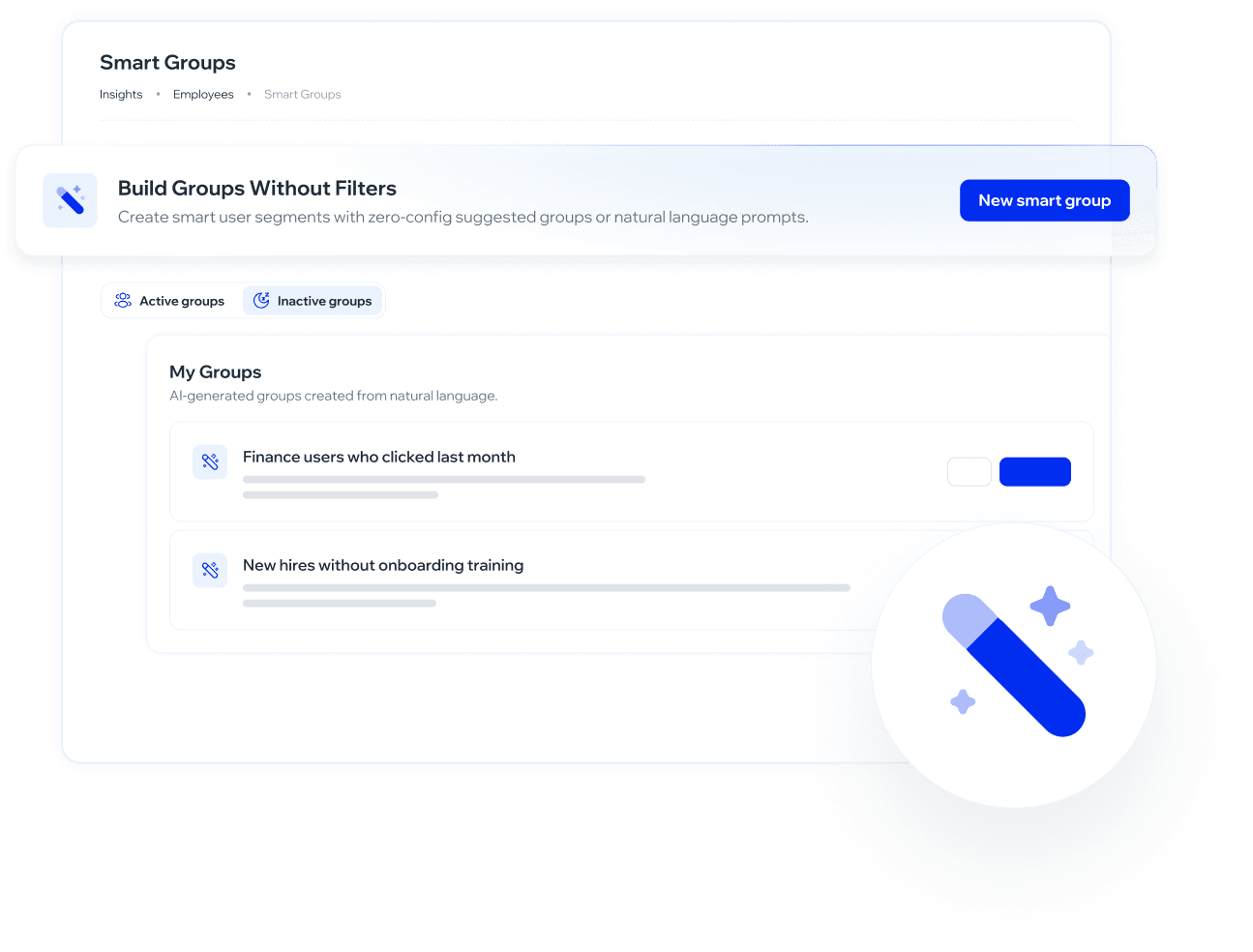
Los Grupos Inteligentes son una versión beta: pueden presentar errores o fallas, y todavía no están completos ni finalizados. Se habilitan por CX para cada empresa — si no ves Grupos Inteligentes dentro de Configuración → Empleados, escríbele a tu contacto de CX para activarlos.
¿Para qué sirve?
Crear audiencias específicas para campañas de simulación o formación sin configurar filtros complejos.
Identificar rápidamente usuarios con comportamientos de riesgo: clickers recientes, nuevos ingresos sin formación, reincidentes, etc.
Reutilizar grupos activos en múltiples campañas, manteniéndolos siempre actualizados.
Ajustar manualmente los resultados excluyendo usuarios que no corresponden al criterio.
Organizar la gestión de empleados en segmentos accionables sin depender del equipo técnico.
¿Cómo se usa?
Navegación: Configuración → Empleados → Grupos Inteligentes
Crear un nuevo Grupo Inteligente
Desde la pantalla principal de Grupos Inteligentes, haz clic en Nuevo Grupo Inteligente.
En el formulario que se abre, completa:
Nombre del grupo (campo obligatorio): ej. "Usuarios de mucho riesgo en los últimos 20 días"
Describe el criterio (campo obligatorio): escribe en lenguaje natural quiénes deben integrar el grupo. Puedes hacerlo tú o usar una de las sugerencias rápidas disponibles:
Usuarios de alto riesgo
Nuevos ingresos sin formación
Clickers recientes
Sin simulación recibida
Haz clic en Generar. La IA procesa el criterio y construye el grupo en segundo plano.
Mientras se genera, el grupo aparece en la pestaña Grupos inactivos con el estado Generando…
Una vez listo, aparece una notificación: "¡Tu grupo está listo!", con acciones rápidas para Ver o Activar.
Los grupos son generados por IA e identificados con la etiqueta Generado por IA en su detalle.
Ver el resultado antes de activar:
Haz clic en Ver para revisar la previsualización del grupo.
La pantalla muestra una Vista previa de resultados con dos cosas: una muestra de hasta 10 personas que coinciden con el criterio, y arriba a la derecha el contador Usuarios: N con a cuántas personas alcanza el grupo en total.
La muestra y el total son dos números distintos, y está bien que no coincidan. Si el contador dice
Usuarios: 34y ves 10 filas, el grupo tiene 34 personas y estás viendo una parte. Antes el contador mostraba el tamaño de la muestra, así que decíaUsuarios: 10tanto para un grupo de 10 como para uno de 400.Cada persona aparece una sola vez. Si tu criterio cruza dos condiciones —por ejemplo «cayó en phishing» y «no hizo el curso»—, antes una misma persona podía ocupar varias filas de la muestra, y el grupo parecía estar mal cuando en realidad estaba bien.
Desde aquí puedes:
Hacer clic en Activar para habilitar el grupo.
Hacer clic en Guardar para guardarlo sin activarlo todavía.
Hacer clic en Descartar grupo para eliminarlo sin guardarlo.
Los colaboradores desactivados nunca entran al grupo. No hace falta que lo aclares en el criterio: si diste de baja a alguien, queda fuera de la audiencia automáticamente, tanto en la vista previa como en el grupo ya activo. Si vuelves a activar a esa persona y cumple el criterio, se reincorpora sola en la próxima actualización.
Activar un grupo:
Al activar, el grupo pasa a la pestaña Grupos activos y queda disponible para ser utilizado en campañas, inscripciones y analíticas. La cantidad de miembros que muestra coincide con el número que veías en el contador de la vista previa.
La pantalla del grupo activo muestra el listado completo de usuarios incluidos con la opción de Excluir individualmente a cada uno.
Al excluir un usuario, se abre un modal que solicita el motivo. Las opciones son:
No representa el criterio
Ya fue abordado por otro canal
Problema de calidad de datos
Otro
Este campo es obligatorio para confirmar la exclusión
Al excluir a alguien, el contador baja en uno, pero la muestra sigue mostrando 10 filas: el lugar que quedó libre lo ocupa la siguiente persona del grupo. No es un error.
Desactivar un grupo:
Desde la vista de edición de un grupo activo, haz clic en Desactivar. El grupo pasa a Grupos inactivos y puede reactivarse desde ahí.
Acceder a un Grupo Inteligente desde la vista de Empleados:
Los Grupos Inteligentes también aparecen en la sección Empleados y Grupos, bajo la pestaña Grupos. Los grupos creados con IA se identifican con la etiqueta (Smart) junto a su nombre.
Desde esa vista, al hacer clic en el menú de tres puntos (⋮) de un grupo Smart, tienes las siguientes opciones:
Ver: abre la vista de detalle del grupo con sus miembros actuales.
Editar: te lleva directamente a la pantalla de edición del Grupo Inteligente, donde puedes modificar el nombre y excluir usuarios.
Desactivar: desactiva el grupo sin eliminarlo.
Eliminar: elimina el grupo de forma permanente.
Esta es una vía alternativa de acceso. El flujo principal de gestión de Grupos Inteligentes sigue siendo desde
Configuración → Empleados → Grupos Inteligentes.
Usar Grupos Inteligentes en otras partes de la plataforma:
Una vez que un Grupo Inteligente está activo, aparece disponible en el selector de grupos en:
Inscripciones a Academia: puedes usarlo para asignar formaciones a los colaboradores que integran el grupo.
Estadísticas y analíticas: el grupo aparece listado junto al resto de los grupos de la organización, por lo que puedes seleccionarlo en cualquier selector de grupos de la plataforma.
Solo los grupos con estado Activo aparecen disponibles en estos selectores. Los grupos inactivos no son visibles hasta que se reactiven.
Combinar dos criterios en un mismo grupo
Las cuatro sugerencias rápidas usan un solo criterio cada una, pero el campo acepta criterios combinados. El más útil es el que cierra el ciclo de concientización: quiénes cayeron en una simulación y todavía no hicieron el curso que se les asignó.
Copia este texto en el campo de criterio:
Colaboradores que cayeron en una campaña de phishing y todavía no completaron el curso que se les asignó
Como el grupo se actualiza solo, en la campaña siguiente ya no incluye a quienes completaron el curso mientras tanto. No hace falta rearmarlo entre una simulación y otra, ni llevar a mano la lista de quiénes ya se capacitaron.
Di "cayeron en la campaña", no "completaron la campaña"
Completar existe solo para los cursos y las rutas de aprendizaje. Una simulación no se completa: se recibe, se abre, se hace clic o se reporta.
Si el criterio dice que alguien "no completó la campaña", la plataforma no lo va a poder resolver y te va a pedir que lo reformules. La forma que sí funciona es nombrar cada cosa por lo que es: cayeron en la campaña, no completaron el curso.
Otras combinaciones que funcionan
Un filtro de la nómina más uno de comportamiento: "Colaboradores de Recursos Humanos que hicieron clic en el último mes".
Una ventana de tiempo más una negación: "Usuarios que ingresaron este año y todavía no completaron ningún curso".
Un umbral más un período: "Colaboradores que cayeron en más de 3 simulaciones en el último año".
❓ Preguntas frecuentes
¿Por qué no veo Grupos Inteligentes en mi menú?
Porque todavía es una versión beta y se habilita empresa por empresa. Escríbele a tu contacto de CX si quieres probarla.
El contador dice 34 usuarios pero solo veo 10 en la lista.
Está bien. La vista previa muestra una muestra de hasta 10 personas, y el contador te dice a cuántas alcanza el grupo en total. Los dos números coinciden solo cuando el grupo tiene 10 personas o menos.
Veía a la misma persona repetida varias veces en la vista previa.
Ya no pasa: cada persona aparece una sola vez. Ocurría con los criterios que cruzan dos condiciones, y era un problema de cómo se armaba la muestra —no del grupo, que siempre tuvo a cada persona una sola vez—.
¿Puedo editar el criterio de un grupo después de crearlo?
Sí. Desde la vista de edición del grupo puedes modificar el nombre. Si necesitas cambiar el criterio desde cero, lo más práctico es crear un nuevo grupo.
¿Qué pasa si un usuario no debería estar en el grupo?
Puedes excluirlo manualmente desde la vista del grupo. Se te pedirá un motivo antes de confirmar, y el contador bajará en uno.
¿Puedo pedir dos condiciones a la vez?
Sí, y es donde la feature rinde más. Las cuatro sugerencias rápidas son de un solo criterio, pero el campo acepta combinaciones: un área más un comportamiento, una ventana de tiempo más una negación, un umbral más un período. Tienes ejemplos en la sección "Combinar dos criterios en un mismo grupo".
Escribí un criterio y la plataforma me pide que lo reformule. ¿Por qué?
Lo más común es haber usado un verbo que no corresponde a lo que se está pidiendo. El caso típico es "completar" aplicado a una simulación: completar existe solo para cursos y rutas de aprendizaje. Revisa que cada acción corresponda a lo que estás nombrando — de una campaña se dice que alguien la recibió, la abrió, hizo clic o la reportó.
También ayuda ser explícito con el período ("en el último mes", "este año") y con la cantidad ("más de 3 veces") cuando el criterio los necesita.
¿Los colaboradores dados de baja pueden quedar dentro de un Grupo Inteligente?
No. Los colaboradores desactivados quedan fuera de la audiencia siempre, sin que tengas que pedirlo en el criterio, y tampoco aparecen en la pantalla donde excluyes integrantes. Si desactivas a alguien que ya estaba en un grupo, sale en la próxima actualización del grupo.
Ten en cuenta que "desactivado" no es lo mismo que "sin actividad". Desactivado es alguien a quien diste de baja de la plataforma. Si lo que quieres es un grupo de gente que no interactuó en un tiempo, eso sí va escrito en el criterio: describe el período y qué cuenta como actividad.
¿Y si vuelvo a activar a esa persona?
Se reincorpora sola en la próxima actualización, si sigue cumpliendo el criterio. Si además la habías excluido a mano de ese grupo, sigue excluida: dar de baja y volver a dar de alta no borra esa exclusión.
¿Los grupos se actualizan solos cuando cambian los datos de la organización?
Sí. Los Grupos Inteligentes son dinámicos: el sistema recalcula automáticamente quiénes cumplen el criterio a medida que los datos de la organización cambian.
¿Cuándo conviene usar Grupos inactivos en lugar de Activos?
Guarda un grupo como inactivo cuando aún no quieres usarlo en campañas pero sí quieres conservarlo para más adelante. Solo los grupos activos están disponibles para asignar a simulaciones, formaciones o para filtrar analíticas.
¿Puedo crear varios grupos con criterios similares?
Sí, no hay límite visible de grupos. Cada uno se genera de forma independiente y puede tener su propio ciclo de activación/desactivación.
¿Tienes feedback o quieres solicitar mejoras? Háznos saber en roadmap.whalemate.com/roadmap