
Docs / Simulations
Simulations - Smishing
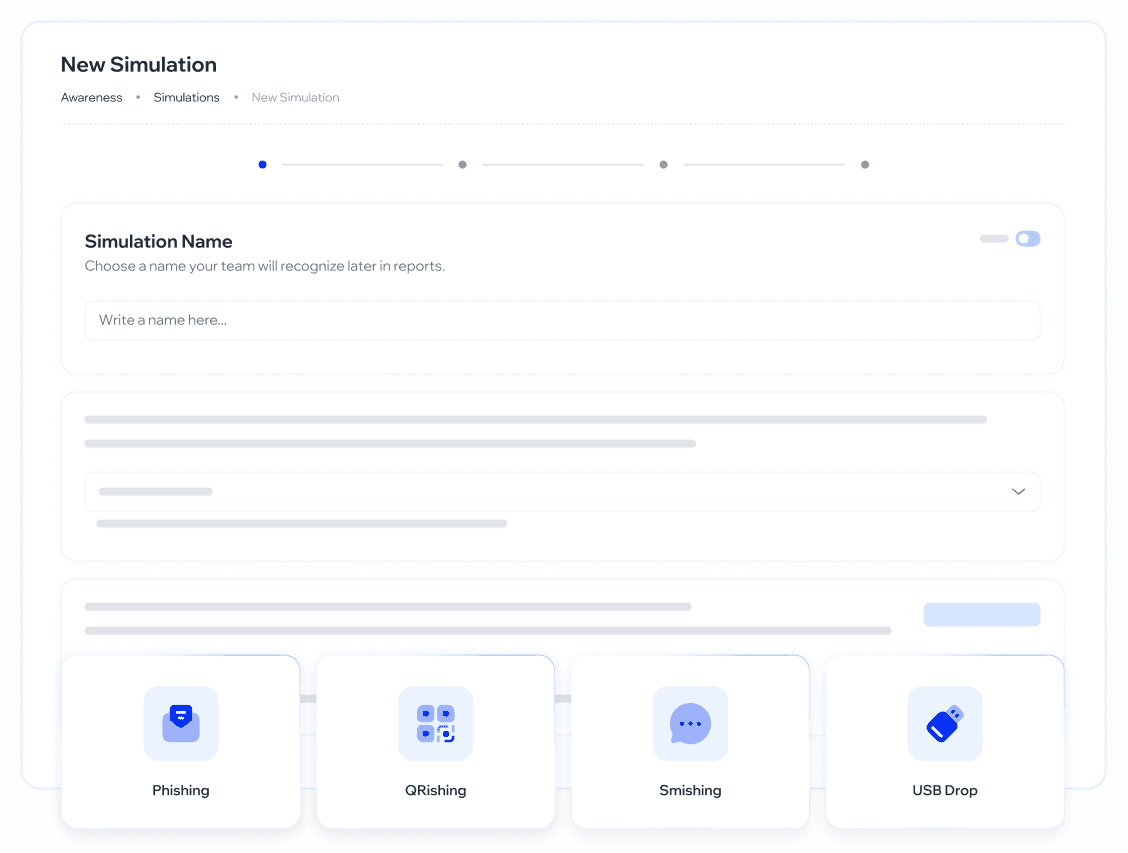
Create and launch SMS phishing simulations (smishing) in 4 steps: Basics → Configuration → Message → Delivery.
What is it for?
Tests employee resilience against fraudulent SMS messages, replicating real-world smishing attacks.
Helps identify which employees are most vulnerable to this type of threat.
Allows precise audience segmentation: all employees with a valid phone number, or a custom selection by employee, department, or team.
Offers ready-to-use message templates, or the option to write a custom message with dynamic variables like the recipient's name.
Allows automatic training assignment for employees who fall for the simulation, closing the awareness loop. (Coming soon)
How to use it?
Navigation: Awareness → Simulations → New simulation → Smishing
Step 1 — Basics
From the side menu, go to Awareness → Simulations and click + New launch.
On the campaign type screen, select Smishing.
Enter the simulation name (used to identify it in reports).
To run an internal test before the real launch, enable the Test toggle in the upper-right corner. Test simulations are not counted in analytics or the Human Risk Score.
Click Continue.
Step 2 — Configuration
Select the simulation language from the dropdown: Spanish, English, or Portuguese.
In the Audience section, choose one of the available options:
Suggested audience (coming soon): employees the platform identifies as at-risk who have a valid phone number.
All employees: includes all employees with a valid phone number. The Selected users counter updates automatically.
Custom audience: opens an advanced selection modal.
If you choose Custom audience, a modal opens with three tabs: Employees, Departments, and Teams. You can combine selections from all three tabs; the platform merges them into a single audience.
Use the search bar to filter by name.
Enable the Valid phone number toggle to show only employees with a phone number on record.
The right panel shows a summary: Total users, Reachable users, and Excluded.
When done, click Apply.
The Selected users field in the Audience section updates with the confirmed total.
Under Simulation type, choose between:
Click only: the employee receives an SMS with a link; a click is recorded if they interact.
Credential harvesting: the employee is redirected to a fake login page where they may enter their credentials.
Under Simulation results, choose the Recommendation page the employee will see after falling for the simulation. Select from a dropdown with multiple options.
Enable the Preview toggle to preview the selected page before confirming.
Under Training assignment (coming soon), enable the toggle if you want a course automatically assigned to employees who fall for the simulation.
Click Next.
Step 3 — Message
In the Message section, choose one of two options:
Choose a Smishing template: select a pre-designed template from the dropdown.
Write your own SMS: compose the message from scratch in the free-text field.
The Preview panel on the right shows in real time how the SMS will appear on the recipient's phone, including dynamic variables like
{{FirstName}}.Coming soon: messages may include a "High deliverability" indicator, confirming the message is unlikely to be filtered.
Click Next.
Step 4 — Delivery
Choose when to send the simulation:
Time period: the platform distributes the send across a time range.
Specific date: schedule it for a specific day and time.
Send now: sends immediately upon confirmation.
Click Preview & Send to review the final configuration before launching.
The Preview & Send confirmation modal shows a summary: simulation name, number of reachable users, delivery mode, and a preview of the message with the assigned recommendation page.
Click Send to launch the simulation.
❓ Frequently asked questions
What is the difference between "Suggested audience" and "All employees"?
The suggested audience (coming soon) will prioritize employees the platform identifies as at-risk who have a valid phone number. "All employees" includes any employee with a number on record, regardless of their history.
Can I combine employees, departments, and teams in the same campaign?
Yes. In the custom audience modal, you can select items from all three tabs; the platform merges them into a single audience.
What happens if an employee doesn't have a phone number on record?
They will not be reachable for the simulation. The Valid phone number toggle in the audience modal lets you filter and see only employees with a valid number. The summary shows Reachable users so you know exactly how many will receive the SMS.
Can I personalize the message with the recipient's name?
Yes. Both templates and the free-text field support the {{FirstName}} variable, which the platform automatically replaces with each employee's name at send time.
What is "Test" mode?
It lets you send the simulation as an internal test before launching to the real audience. Test simulations are not counted in analytics or the Human Risk Score. Enable it using the Test toggle in the Basics step.
Have feedback or want to request improvements? Let us know at roadmap.whalemate.com/roadmap
Was this helpful?